
Let’s get started…
- Tap the Apps button and locate your built-in email application. (Most likely an icon with an @ symbol or envelope called Email.)
- Open the apps settings and select Add Account. (If this is your first time using your email app you may already be on the Set up account page when you opened the app.)
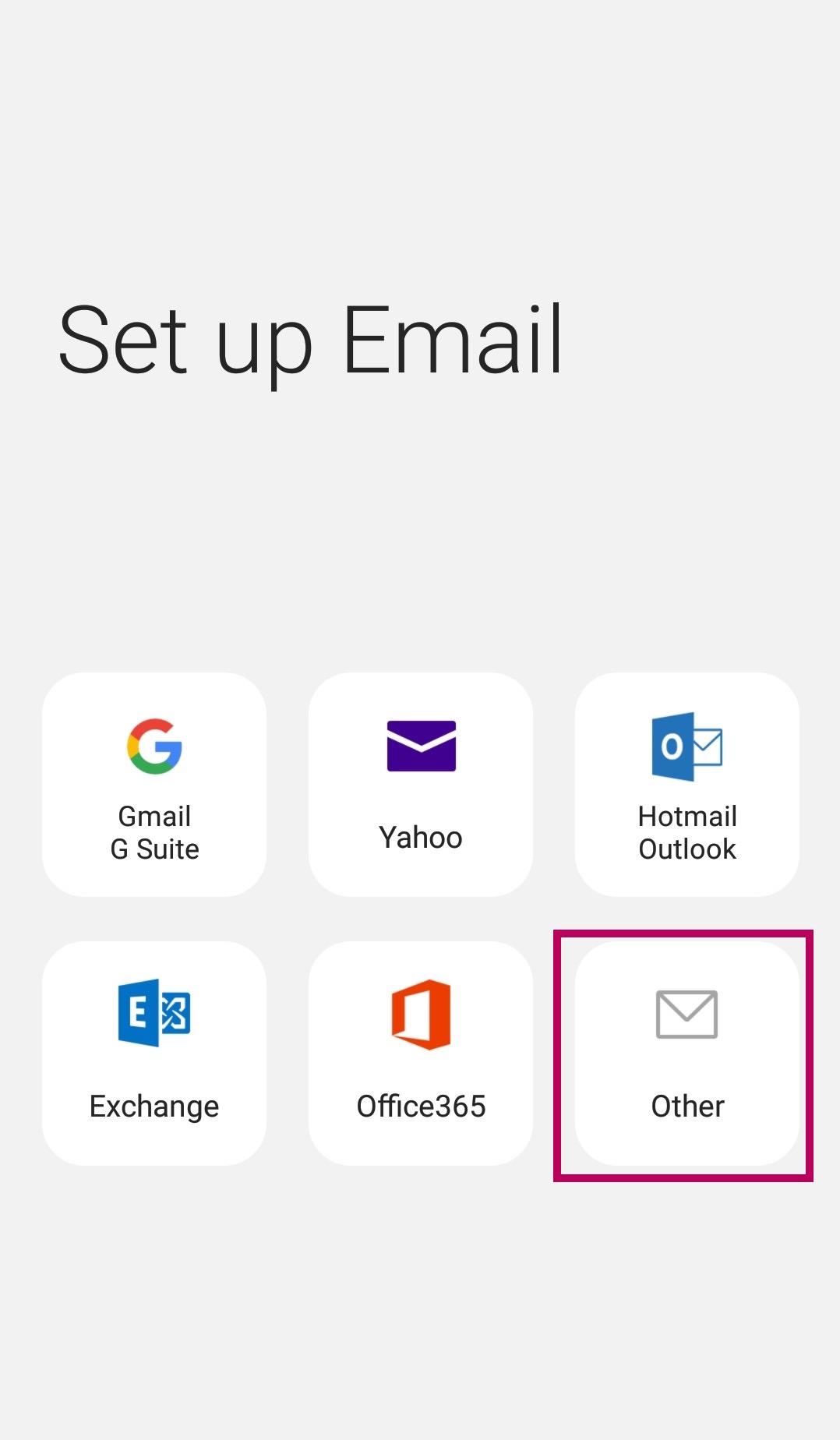
- Select OTHER
- Enter your Email Address and Password in the fields and then tap MANUAL SETUP.
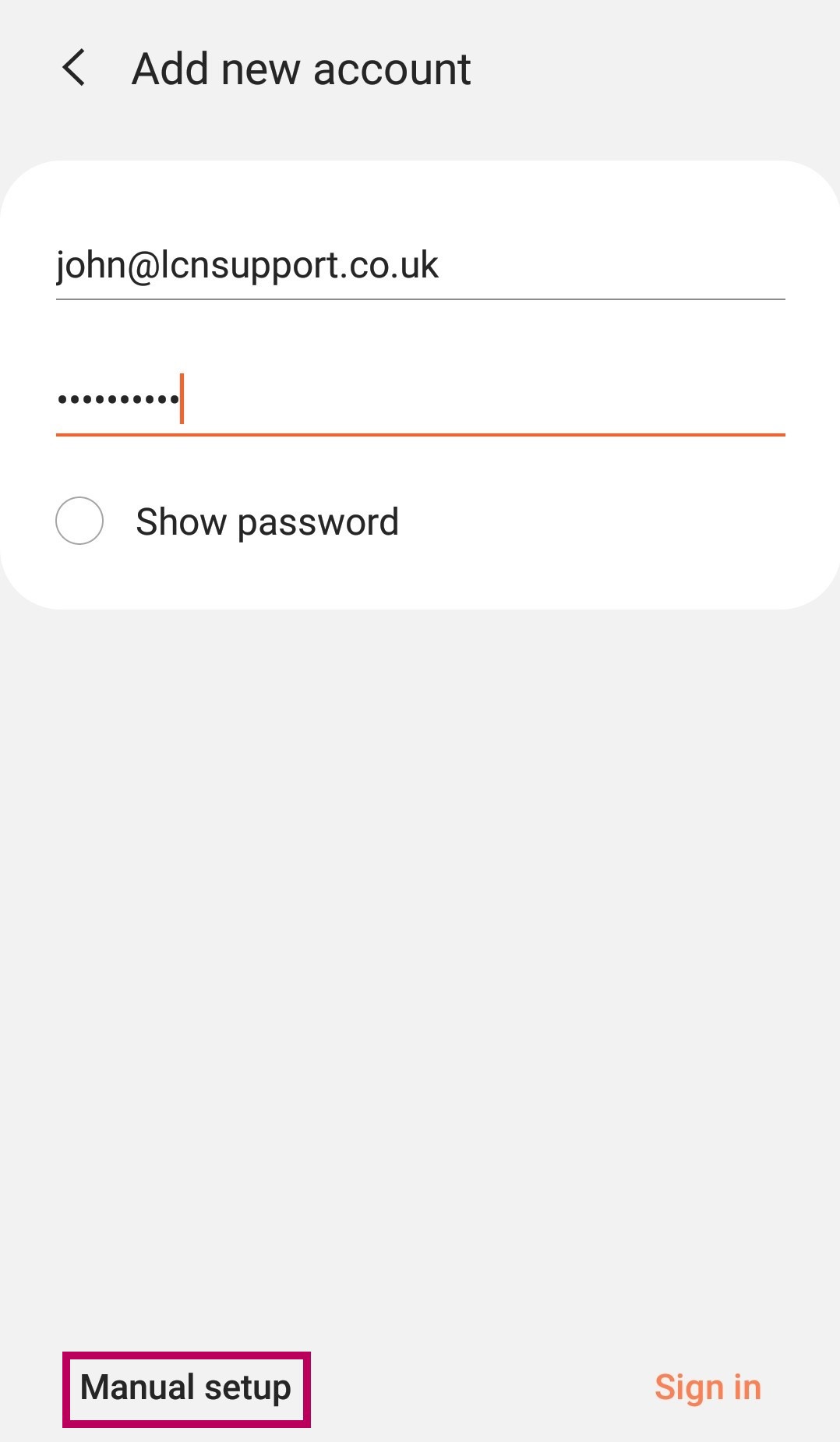
Please Note: It might be helpful to choose Show password to ensure the password is correct if you have this as an option.
- The device will now ask you to Select account type you want to use. Tap IMAP ACCOUNT, alternatively, if you want to use POP3 you can find all the settings you’ll need in our guide.
Please Note: If you have a free mailbox you can only set up as IMAP.
- Your device will then ask you for your account settings. The following details need to be entered on this screen:
ACCOUNT
- In the Email address field enter your full email address if not populated already.
- In the Username field enter your full email address
- In the Password field enter your email password if not populated already.
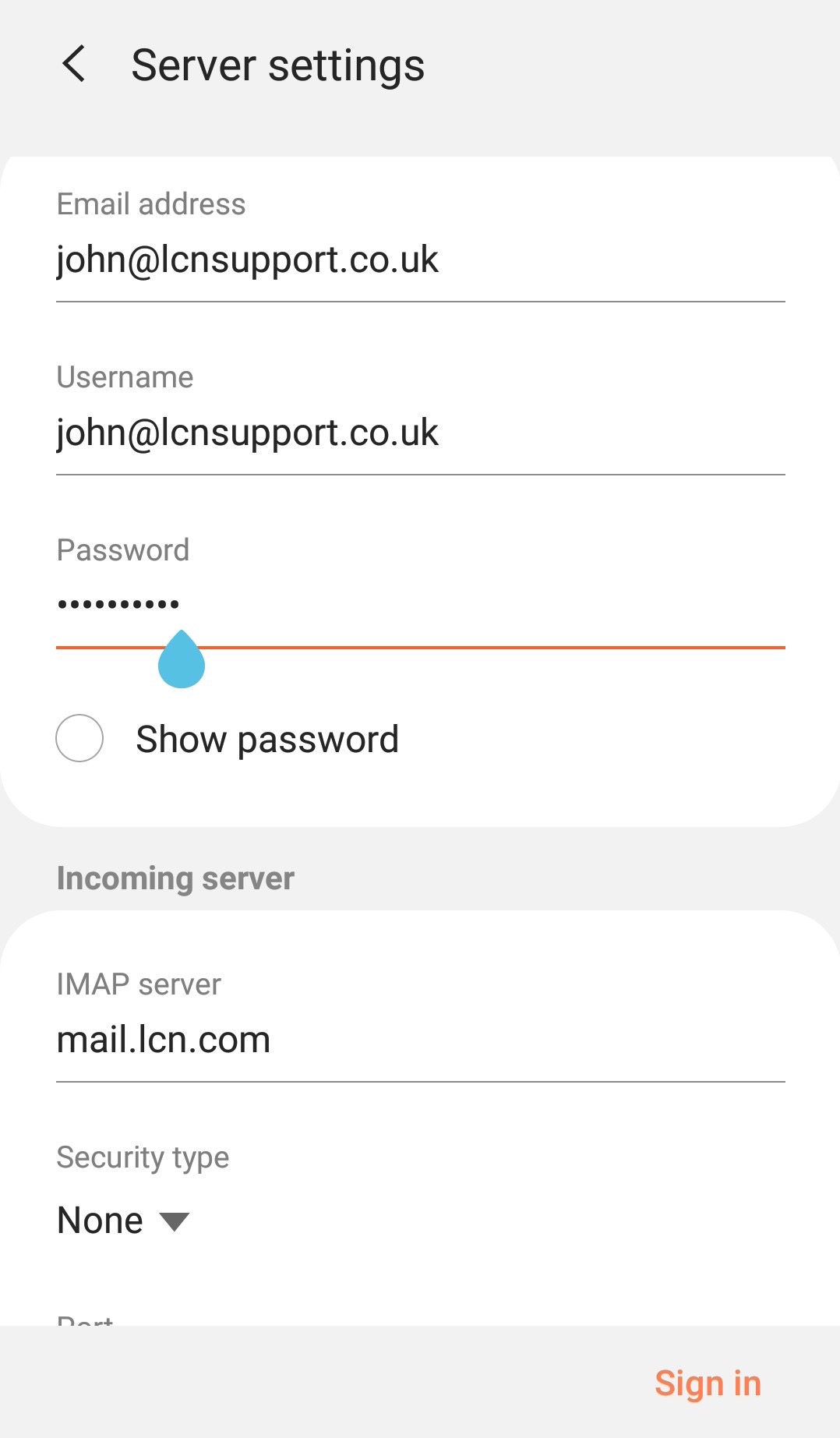
INCOMING SERVER
- In the IMAP server field enter mail.lcn.com
- The Security type needs to be set to none
- The Port should be set to 143
- The IMAP path prefix needs to be left blank
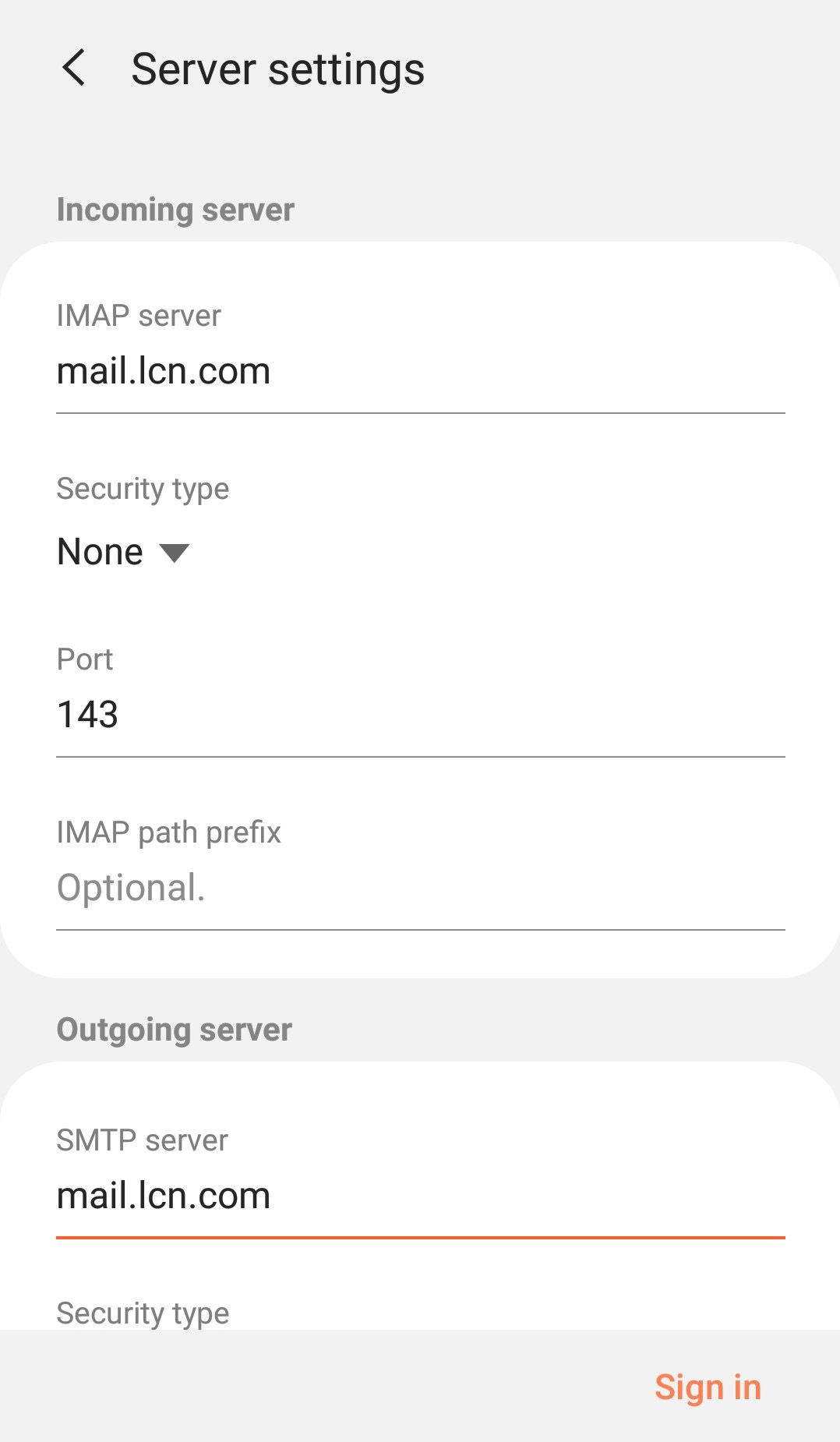
OUTGOING SERVER
- In the SMTP server field enter mail.lcn.com
- The Security type needs to be set to none
- The Port should be set to 25, 26 or 587
- Ensure that Authentication required before sending emails is ticked
- In the Username field enter your full email address
- In the Password field enter your email password
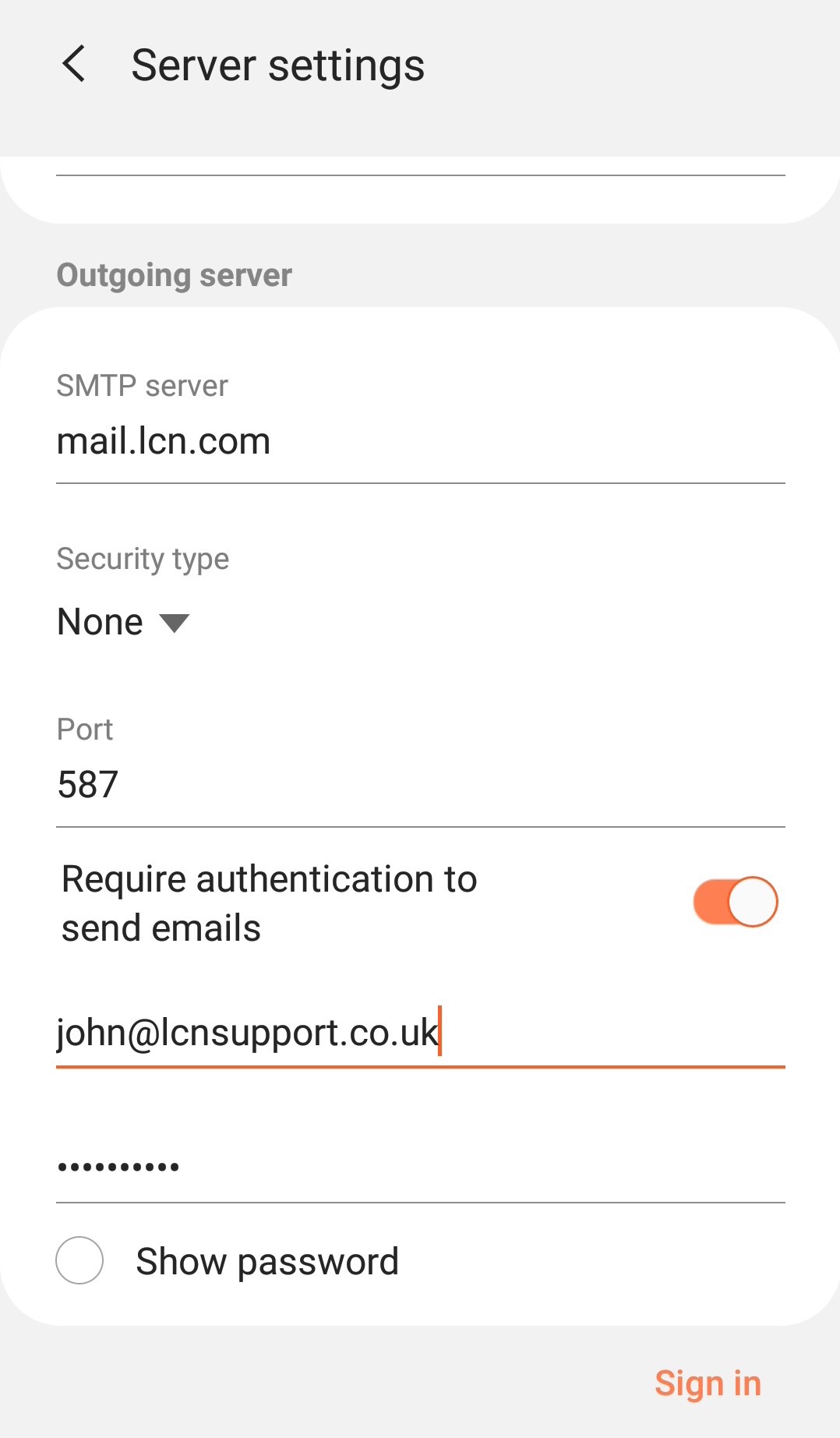
- Once completed click SIGN IN
- The device will attempt to connect to the servers. If you receive any errors, simply choose Cancel and double check your details are correct. Once successful, you will be taken back to the Accounts screen.