To setup a mailbox using IMAP for your iPhone/iPad please follow the instructions below, the details to use for your mailbox can be found here.
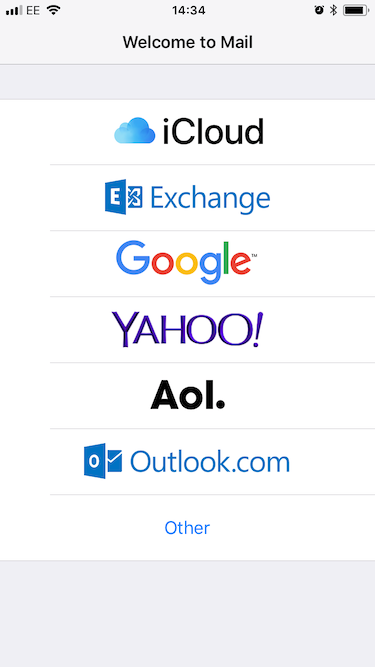
- Open Mail and then choose Other as the mailbox type.
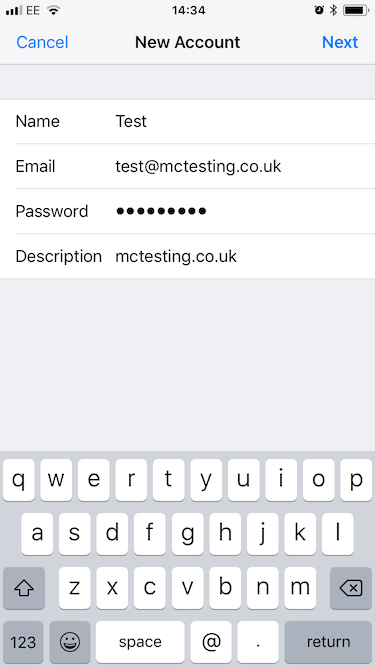
- From the New Account screen you can then enter the mailbox details and click Next:
- Name: <name you want to give the mailbox>;
- Email: <email address>
- Password: <mailbox password>
- Description: <label for mailbox on your device>
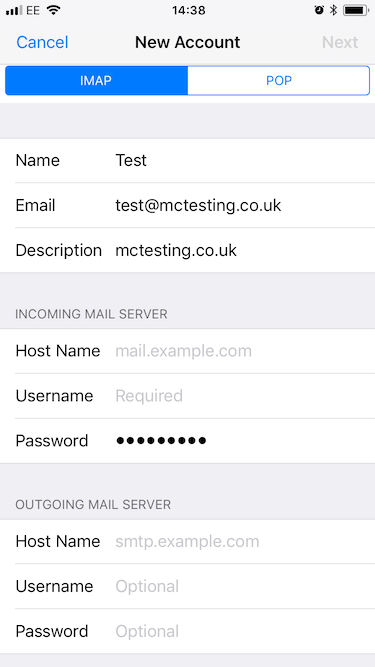
- On the next screen you will need to add the incoming and outgoing mail server details. Ignore the 'optional' placeholder in the outgoing settings, these are required if you want to send email.
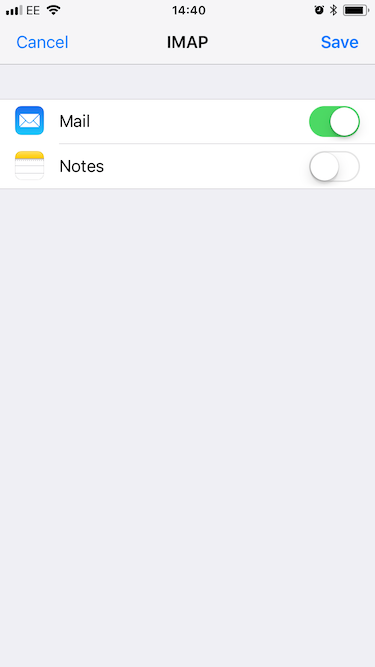
- Mail will prompt you to choose which apps you want to use (Notes/Mail), click save you're ready to go.